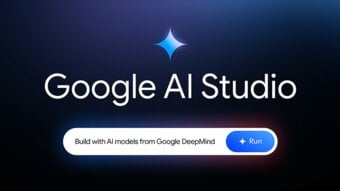
In the past, advanced AI tools were often locked behind paid subscriptions, complex APIs, or developer-only environments. That changed with Google AI Studio. Built by Google, this platform brings professional-grade AI models into a clean, browser-based workspace that anyone can use.

Google AI Studio is designed for creators, marketers, designers, and developers who want more control than the standard Gemini chat interface provides. Instead of just asking questions, you can analyze long videos, break down viral content, generate images and videos, build small apps without code, and even get real-time creative feedback.
This guide walks you through everything from the first login to advanced creator workflows. No prior AI experience is required. By the end, you will understand not just what Google AI Studio can do, but how to use it effectively in real projects.
1. Getting Started: Entering Google AI Studio
1.1 Accessing the Platform
Getting started is simple:
-
Open your browser and visit the Google AI Studio website.
-
Sign in using your existing Google account.
-
No credit card is required, and there is no mandatory subscription.
This makes Google AI Studio ideal for beginners who want to experiment without financial risk.
1.2 Understanding the Home Screen
Once logged in, you will see a clean dashboard with three main areas:
Build
This section allows you to create functional apps using natural language. You describe what you want, and the system generates the logic for you.
Chat / Playground
This is where most users begin. It looks similar to a chat interface but supports advanced features like file uploads, video analysis, system instructions, and model switching.
Manage
Here you can review your usage, see previous projects, and understand how many tokens your prompts consume.
For beginners, start with Chat / Playground. It is the safest place to experiment and learn.
2. Understanding the Multimodal Engine
2.1 What "Multimodal" Really Means
Most traditional AI tools only work with text. Google AI Studio goes further. It can understand and process:
-
Text
-
Images
-
Audio
-
Video
-
PDFs and large documents
-
Code files
This is possible because of its extremely large context window. You can upload hours of video or hundreds of pages of documents and analyze them in a single session.
2.2 Key Parameters You Must Learn
Before running advanced prompts, it is important to understand a few core controls.
System Instructions
System instructions define who the AI is and how it should behave.
Examples:
-
"You are a professional YouTube growth strategist."
-
"You are a patient teacher explaining concepts to beginners."
-
"You are a strict editor focused on clarity and structure."
Once set, the AI keeps this role throughout the session. This is one of the most powerful features for consistent output.
Temperature
Temperature controls randomness and creativity.
-
0.0 – 0.5
Best for summaries, analysis, coding, and factual work. -
0.7 – 1.0
Good for creative writing, brainstorming, and ideation. -
1.5 and above
Produces highly experimental and unpredictable ideas.
Beginners should stay below 1.0 until they understand how temperature affects results.
Safety Settings
Google AI Studio allows you to manually adjust content filters. This is useful when working on creative or marketing projects where overly strict filtering can limit output.
For most users, the default settings are fine. Adjust only if you clearly understand why you need more flexibility.
3. Case Study 1: Content Deconstruction for Viral Analysis
3.1 Why Content Deconstruction Matters
Many creators rely on guesswork to understand why content performs well. Google AI Studio removes the guesswork by letting you analyze successful videos directly.
Instead of copying blindly, you can extract patterns and apply them to your own work.
3.2 Uploading a YouTube Video
In the Chat / Playground:
-
Click the "+" button.
-
Paste a YouTube link or upload a video file.
-
Wait for the system to process the content.
You can upload full videos or select a specific time range.
3.3 Asking the Right Questions
Once the video is loaded, try prompts like:
-
"Analyze the first 30 seconds and explain why they are effective."
-
"Describe the narrative structure of this video."
-
"Identify emotional triggers used throughout the content."
-
"List keywords and call-to-action phrases that drive engagement."
3.4 Token-Saving Tip
If you only care about the opening hook, select just the first 1–2 minutes during upload. This reduces token usage and speeds up analysis while keeping results focused.
4. Case Study 2: Visual and Video Style Replication
4.1 From Analysis to Creation
Google AI Studio does not stop at analysis. It helps you recreate styles in a controlled, repeatable way.
This is especially useful for thumbnails, social media visuals, and short video clips.
4.2 Extracting Visual Prompts
Upload a high-performing image or video frame, then ask:
"Analyze this visual style, lighting, color palette, and composition. Generate a detailed image generation prompt that matches this style."
The AI will return a structured description that can be reused.
4.3 Image Generation
Switch to the image generation model and paste the prompt. You can generate:
-
YouTube thumbnails
-
Instagram visuals
-
Blog illustrations
-
App UI concepts
Adjust wording slightly to match different platforms while keeping the same visual identity.
4.4 Turning Images into Motion
For video content, use the video generation model to animate still images. This allows you to create short clips that match your original reference style without starting from scratch.
5. Case Study 3: Building No-Code Apps with the Build Feature
5.1 Why the Build Feature Is Powerful
The Build feature allows non-developers to create functional tools using plain English. You do not write code. You describe behavior.
This is ideal for automating repetitive creator tasks.
5.2 Example: Thumbnail Resizing App
Imagine you want one thumbnail to work across multiple platforms.
Start with a prompt like:
"Create a web app where users upload a 16:9 YouTube thumbnail. The app should automatically adapt it for 9:16 and 3:4 formats, repositioning text and faces to remain visible."
5.3 Deploying the App
-
Copy the generated technical prompt into the Build section.
-
Choose the appropriate model as the engine.
-
Let the system generate the app logic.
Within minutes, you have a working tool.
5.4 Sharing with Others
Click "Share App" to generate a URL. You can now:
-
Share it with your team
-
Use it internally
-
Integrate it into your workflow
No servers. No hosting setup. No code.
6. Case Study 4: Real-Time Feedback with Gemini Live
6.1 What Is Gemini Live?
Gemini Live allows the AI to see your screen and respond in real time. Think of it as an AI creative partner watching your work as you do it.
6.2 Using Screen Sharing
Enable screen sharing and open tools like:
-
Canva
-
Photoshop
-
Figma
As you work, talk to the AI naturally.
6.3 Example Feedback Prompts
-
"Is this text readable on mobile?"
-
"Does the color contrast stand out enough?"
-
"Which element draws attention first?"
The AI responds instantly, helping you make decisions faster.
7. Case Study 5: Professional Voiceovers with Text-to-Speech
7.1 Why Built-In TTS Matters
Many creators pay for separate voiceover tools. Google AI Studio includes a powerful Text-to-Speech system that produces natural-sounding audio.
7.2 Writing the Script
You can reuse earlier analysis:
"Write a 60-second YouTube script using the hooks and structure identified earlier."
-
Switch to the Audio / Speech model.
-
Paste your script.
-
Choose a voice.
-
Adjust temperature slightly for more emotional variation.
The result is a clean, professional voiceover ready for video editing.
8. The Creator's Workflow Loop
To get the most out of Google AI Studio, follow this repeatable loop:
-
Analyze viral content using advanced models.
-
Extract structure, hooks, and visual styles.
-
Generate scripts, images, and video assets.
-
Automate repetitive tasks with no-code apps.
-
Refine results with real-time AI feedback.
This loop turns Google AI Studio into a complete creative workstation.
Conclusion: From Tool to Creative Partner
Google AI Studio is no longer just an experimental playground. It is a full production environment for modern creators. By combining deep analysis, multimodal generation, automation, and live feedback in one place, it replaces multiple paid tools with a single free platform.
For beginners, the key is to start simple. Learn the interface. Experiment with system instructions. Analyze one video. Build one small app. As your confidence grows, so does the power of what you can create.
With consistent use, Google AI Studio becomes more than software. It becomes a creative partner that scales your ideas faster than ever before.